Weight Loss Tracker in Google Sheets: Set Up kg, lb or Stone in 10 Minutes
Weight loss tracker Google Sheets setup with kg, lb or stone, dated entries, and a simple formula in a clear personal record you can edit for regular use.
By Ultimate Fitness Tracker by Cosmo Suite · Editorial policy
Published · 7 min read
General information for recordkeeping, not medical or fitness advice.
A weight loss tracker in Google Sheets is a spreadsheet for storing dated readings and any calculations you choose to add. Start with four columns: date, reading, unit, and an optional note. Keep the unit consistent and label it at the top. Add a summary formula only when you know which entries it should include.
Allow about ten minutes for a basic sheet if you have chosen a unit and kept the layout simple. This is an estimate for a blank sheet. Formula checks and extra fields can take longer. A weight loss and workout tracker spreadsheet already arranges related records together.
The Trend Line:
- Put each dated entry on its own row.
- Label kg, lb, or stone before entering values.
- Keep recorded values separate from any calculated summary.
- Try the sheet on your phone before adding more fields.
What to Put in a Weight Tracker Sheet
Start with the smallest set of columns that lets you read the record later. Google Sheets lets you enter and format text, numbers, and formulas in cells, so a plain table is enough to begin.
| Column | Example | Why it helps |
|---|---|---|
| Date | 10 Nov | Connects a value to the day it was recorded |
| Reading | 68.4 | Stores the number as entered |
| Unit | kg | Keeps the scale of the value visible |
| Note | Optional | Adds context you choose to remember |
| Summary | Formula | Shows a calculation separately from the entries |
The example values in this article are fictional. They show a layout only, not typical or expected readings. Keep your own entries in the format that is clear to you.
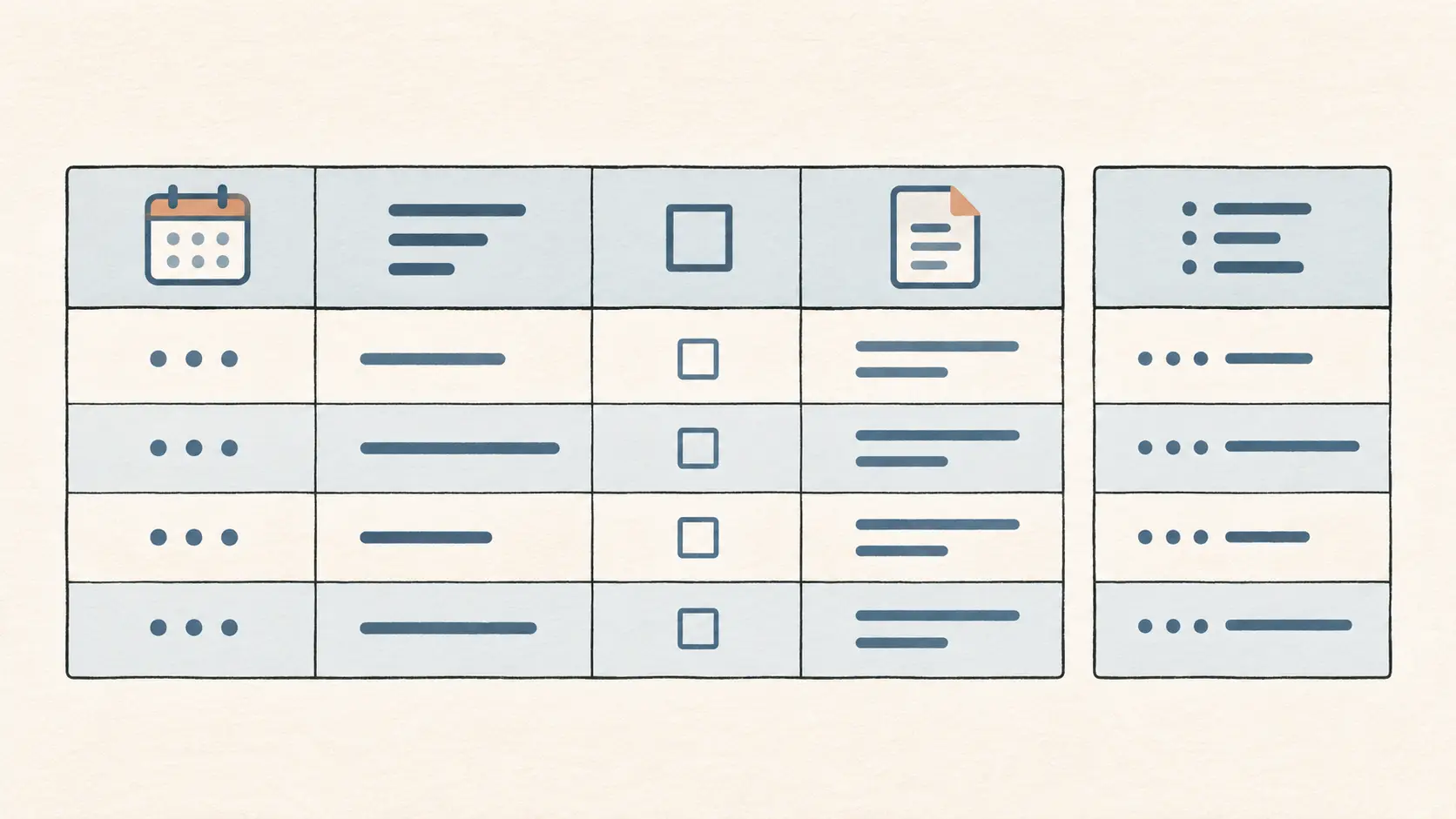
The weight loss tracker spreadsheet example shows how a broader record can keep weigh-ins beside other tracking fields. For a blank sheet, though, you do not need to copy every field. Begin with the information you will actually enter.
Set Up the Sheet in a Few Steps
Create a new spreadsheet and label the first row with your column names. Google’s guide covers entering and formatting cell data. Keep headings short so you can recognize them on a smaller screen.
- Name the sheet for its purpose, such as “Personal tracking log.”
- Add Date, Reading, Unit, and Note as column headings.
- Format the reading column as a number with the decimal places you want to keep.
- Put your chosen unit in the heading or in a fixed cell above the table.
- Enter one test row, then check that the date and reading appear as intended.
A blank sheet will not know how you want to summarize values. Add a summary only after choosing the window and purpose. Keep it in a separate column, with a label such as “7-entry average,” so it cannot be mistaken for a recorded reading. The weight loss tracker template guide compares common fields and formats if you are deciding what to include.
Choose One Unit and Keep It Visible
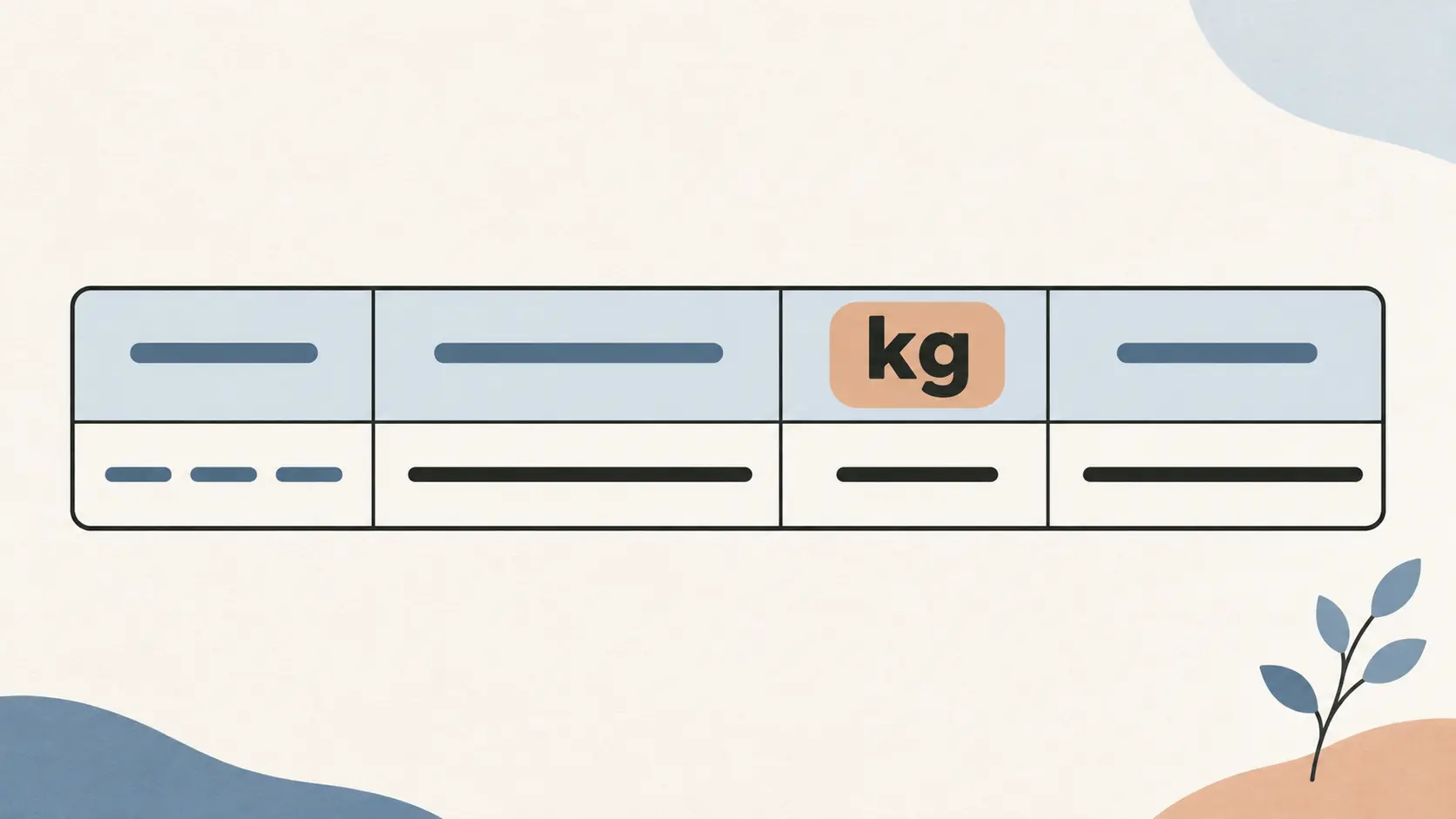
Pick kg, lb, or stone before you enter the first value. Put the unit beside the column heading, and repeat it in a chart title if you add a chart. This simple label makes the record easier to scan later.
Avoid putting values in different units into one numeric column. A formula can calculate an average, but it cannot tell that one row uses kilograms and another uses pounds. If you change units, convert the full set consistently or start a clearly labeled section for the new unit. NIST gives an approximate conversion of 1 kilogram to 2.20 pounds (NIST conversion table). Keep the original unit label visible and choose a consistent number of decimal places for converted entries.
[Original data] The next table uses fictional values created for this guide. It demonstrates the layout only, not typical or expected readings. Every entry uses kilograms:
| Date | Reading (kg) | Note |
|---|---|---|
| 1 Nov | 68.4 | Example data |
| 4 Nov | 68.1 | Example data |
| 8 Nov | 68.7 | Example data |
Those values are made up to show the format. A blank or missed date should stay blank. Do not enter zero to fill a gap because it would change a calculation. For a separate view of points and summaries, see the weight loss chart guide.
Add a Summary Without Hiding the Entries
Google Sheets includes functions such as AVERAGE. Select a clearly defined range of numeric entries and check that it matches the label on your summary (Google Sheets AVERAGE function). For example, =AVERAGE(B2:B4) calculates the mean of the three fictional readings above if those readings are in cells B2 through B4.
Check that the formula range includes the entries you intend to summarize. When you add rows, check the range again. Leave a missing row blank instead of entering zero. Keep the source rows visible beside the summary.
[Unique insight] Treat the formula as a view of the entries, not an entry of its own. Keep the source cells visible and check the range after you add or clear a row. That makes it easier to catch a summary that stopped early.
The formula summarizes values in the selected cells. It cannot show why a reading changed or predict a future value. A chart displays recorded values and calculations; it does not diagnose or promise an outcome.
Make It Usable on a Phone
Open the sheet on the phone you expect to use and try adding one test row. The Google Sheets app supports editing spreadsheet cells on Android, but a wide table can still be awkward on a small display (Google Sheets for Android). Keep optional notes brief and place the key entry columns together.
Avoid adding many columns because they might be useful someday. If you later want a new detail, add it with a clear heading and check older rows before using it. A neat record is easier to maintain when each column has one job.
If you share a sheet or use it across devices, review its access settings. Google explains how collaborators can work in Sheets and how owners can view past versions. For a sheet you want to keep personal, check who can view or edit it.
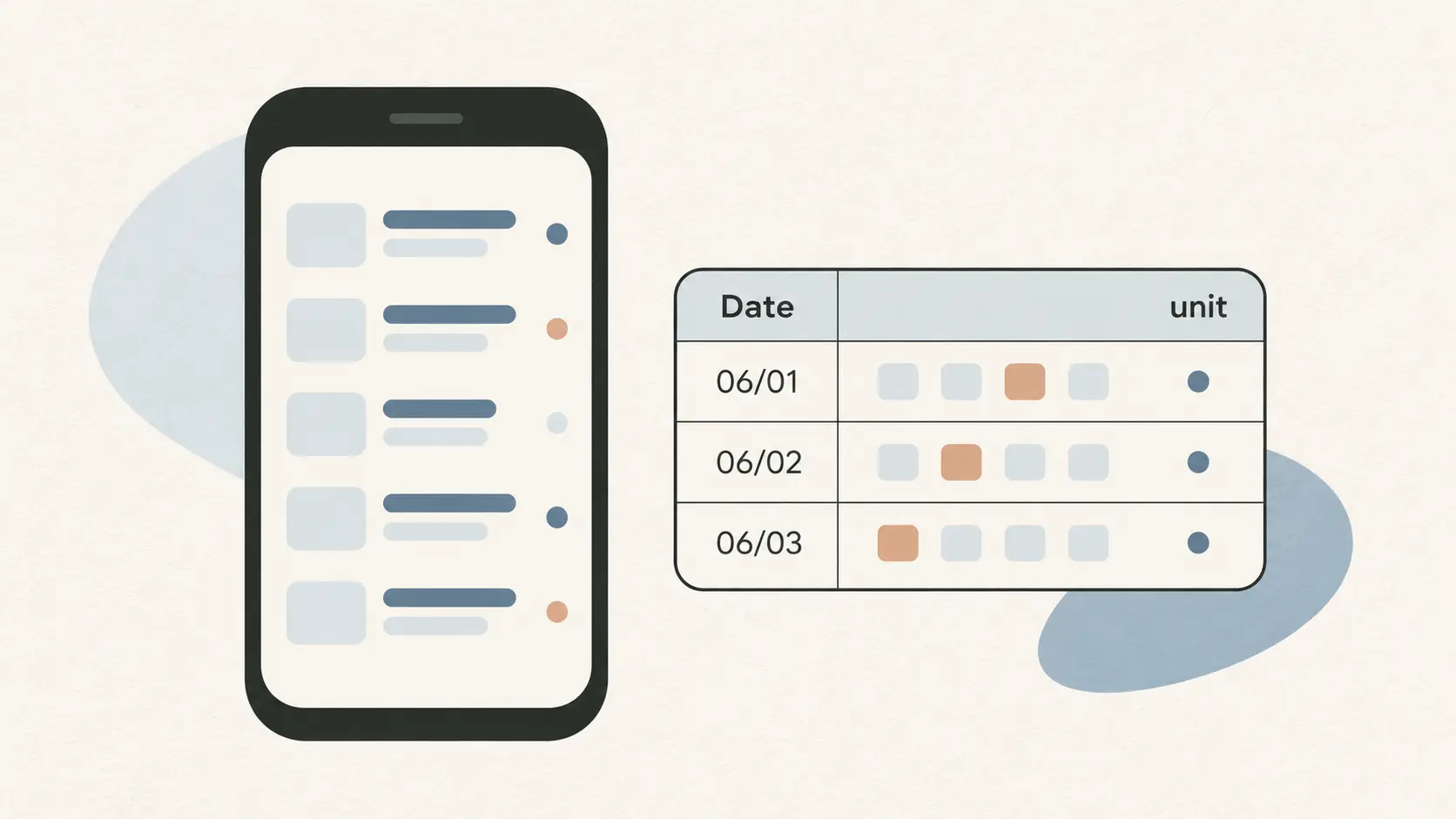
What a Blank Sheet Leaves to You
A blank tracker is flexible, but you are responsible for its formulas and layout. You choose the unit, define each summary range, and check that later entries do not fall outside it. Microsoft’s formula guide also explains that Excel formulas use cell references and recalculate when referenced values change (Microsoft Support).
If you want a formula that keeps a rolling average, decide how many entries it should use and how missing entries should work before you fill it down. Test it with a few fictional values, then check one result by hand. This catches many range mistakes early.
Before relying on a formula, make one extra fictional row and see whether the summary range includes it. Then clear that row and confirm the blank does not turn into a zero. These checks help catch a copied formula that still points to an older range. They also show whether your label describes the calculation you actually set up.
If you want to review edits later, Google Sheets has version history for owners and editors (Google Sheets collaboration help). That can help you inspect an earlier version of the file. It does not replace keeping headings and formulas understandable in the current sheet.
A paper record can work if you prefer writing by hand. A blank Google Sheet suits someone who wants to choose every field. A ready-made template may be easier when you want formulas and related records already arranged. The choice depends on how much setup you want to do.
Why Trust This Article
The Cosmo Suite team made the Ultimate Fitness Tracker spreadsheet. This article explains spreadsheet setup and arithmetic, not health or training advice. Google’s Sheets documentation and Microsoft’s formula help were checked on 10 November 2026. The examples are fictional, and the product details come from the file’s contents. The site’s About page identifies the publisher, and its editorial policy explains source checks and corrections. For a correction, use the contact page. Review sharing settings before entering personal information.
Where Ultimate Fitness Tracker Fits
Ultimate Fitness Tracker is a weight loss and workout spreadsheet for Google Sheets and Excel. Its weight tracking keeps dated entries with a summary, and its other records include measurements, progress photos, and workouts. It is a ready-made option if you want those parts arranged in one file.
A blank Google Sheet suits a small table when you want to maintain its formulas yourself. For fields already arranged in one file, see the weight loss and workout tracker spreadsheet.
Frequently asked questions
How do I make a weight loss tracker in Google Sheets?
Make columns for date, reading, unit, and an optional note. Keep the unit consistent and label it clearly. Add a formula after you decide which entries it should cover. Mark sample entries as fictional.
Can Google Sheets calculate an average for me?
Yes. AVERAGE can summarize numeric cells in a range. Check that the range matches the label. Leave a missing entry blank instead of entering zero.
Should I use kg, lb, or stone?
Choose kg, lb, or stone, then label the unit at the top and on any chart. Convert entries consistently before comparing values from different units.
Can I update a Google Sheets tracker on my phone?
Yes. Google Sheets lets you edit a spreadsheet in its phone app. Keep the entry columns short and try one test row on the device you plan to use.
How do I check who can access my sheet?
Check the file’s sharing settings before entering personal information. Google Sheets lets collaborators work on a file, and eligible editors can view past versions.
Is a spreadsheet template easier than starting from a blank sheet?
A blank sheet gives you control over fields, formulas, and layout, but you maintain them yourself. A template can save setup time when its fields and calculations match your needs.
Sources
- Google Docs Editors Help: How to use Google Sheets
- Google Docs Editors Help: AVERAGE function
- Google Docs Editors Help: Collaborate in Sheets
- Google Docs Editors Help: How to use Google Sheets on Android
- NIST: Approximate Conversions from Metric to US Customary Measures
- Microsoft Support: Enter a formula
Keep reading
Weight Loss Tracking
Weight Loss Tracker Spreadsheet: Track the Trend, Inches and Workouts in One File
Weight loss tracker spreadsheet template: the 7 fields it needs, the 7-day average formula, and a 14-day worked example for Google Sheets and Excel.
· 7 min read
Weight Loss Tracking
Weight Loss Tracker Template: What a Good One Tracks Besides the Scale
Weight loss tracker template checklist: 7 fields a good one needs, scored across printable, Notion and spreadsheet formats, with a worked example log.
· 7 min read
Weight Loss Tracking
Weight Loss Chart: Daily Dots, a Weekly Line, and How to Read Both
Weight loss chart examples can show daily readings beside a weekly average. Learn how to make a clear chart, label example data, and read both lines.
· 7 min read
